Generating Dynamic OpenGraph Images with next/og

When you paste a link into X, LinkedIn, or Slack, the preview card shows an image if the page declares one. That image is the OpenGraph image. Without it, the link gets a plain text card or a generic placeholder.
I didn't want to design one by hand for every post, snippet, and tag on this site, so I generate them with next/og. You describe the image in JSX and Next.js renders it to a PNG.
This post assumes you know the Next.js App Router, basic React and TypeScript, and enough CSS to lay things out with flexbox.
Why generate them
Hand-made images stop being practical once you have more than a few pages. Every time a title changes, the image has to be redone, and after a while the images drift apart in style.
With a template, the image is built from the page's own data. A crawler asks for the image, and Next.js either renders it on the spot or serves one it rendered at build time.
How next/og works
Next.js has a file convention for this. Put an opengraph-image.tsx file in a route segment and Next.js uses it as that route's OpenGraph image.
The file returns an ImageResponse from next/og. Under the hood that's Vercel's Satori, which turns JSX and a subset of CSS into SVG, followed by a step that converts the SVG to PNG.

Building one
Where the file goes
The file sits next to the page.tsx it belongs to:
Its default export is a function that returns an ImageResponse. It can also export alt, size, and contentType, which Next.js puts in the page's meta tags.
A minimal image
The smallest useful version renders some text on a white background:
app/blog/[slug]/opengraph-image.tsx
import { ImageResponse } from "next/og";

export const alt = "Blog Post";
export const size = {
  width: 1200,
  height: 630,
};
export const contentType = "image/png";

export default async function Image() {
  return new ImageResponse(
    <div
      style={{
        fontSize: 60,
        background: "white",
        width: "100%",
        height: "100%",
        display: "flex",
        alignItems: "center",
        justifyContent: "center",
      }}
    >
      Hello World
    </div>,
    {
      ...size,
    },
  );
}
ImageResponse takes the JSX to render and an options object for things like width, height, and fonts.
1200×630 (a 1.91:1 ratio) is the size most platforms expect. Other sizes work, but some platforms crop them.
Custom fonts
By default you get a built-in sans-serif. To match the rest of the site I load the same typewriter font I use elsewhere:
app/blog/[slug]/opengraph-image.tsx
import { readFile } from "node:fs/promises";
import { join } from "node:path";
import { ImageResponse } from "next/og";

export default async function Image() {
  // Load the font file
  const typewriter = await readFile(
    join(process.cwd(), "assets/fonts/Typewriter-Serial-Regular.ttf"),
  );

  return new ImageResponse(
    <div
      style={{
        fontFamily: "Typewriter Serial",
        fontSize: 60,
        // ... other styles
      }}
    >
      Custom Font Text
    </div>,
    {
      width: 1200,
      height: 630,
      fonts: [
        {
          name: "Typewriter Serial",
          data: typewriter,
          style: "normal",
          weight: 400,
        },
      ],
    },
  );
}
The font is read from disk with readFile and passed in the fonts array. The name there has to match the fontFamily in your styles, or the text silently falls back to the default font.
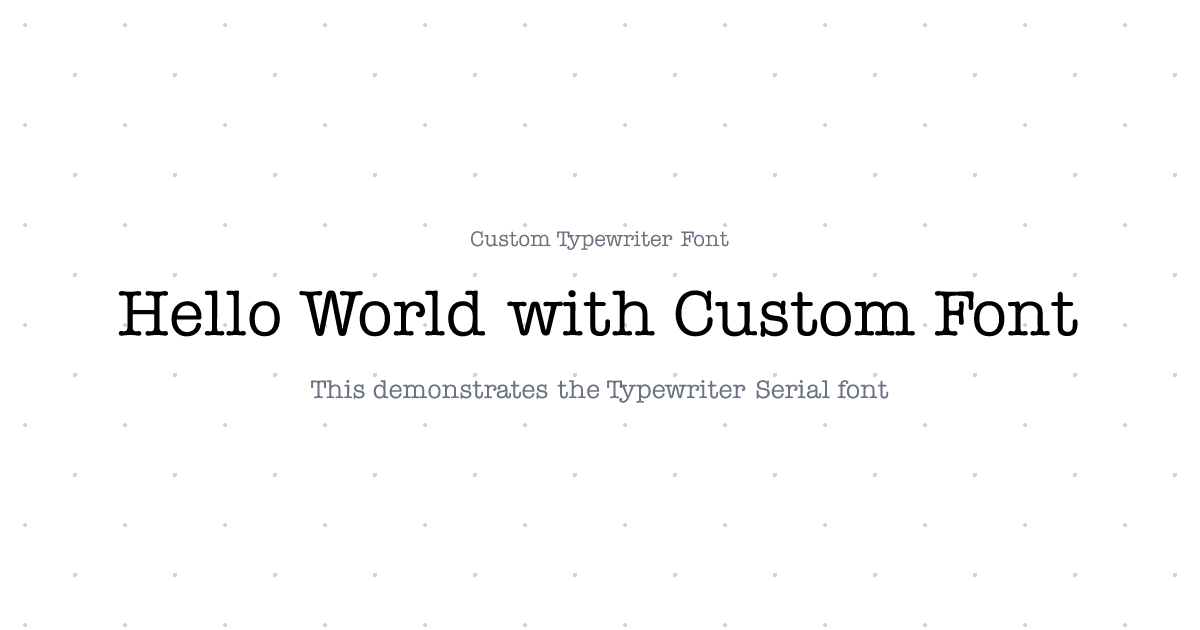
next/og reads TTF and OTF files. WOFF2 doesn't work, so if you only have a web font, find the TTF or OTF version.
Styling
You can style elements with normal React style objects or with Tailwind-style classes in a tw prop, which Satori supports experimentally. Both can go on the same element tree:
app/blog/[slug]/opengraph-image.tsx
<div
  style={{
    height: "100%",
    width: "100%",
    display: "flex",
    flexDirection: "column",
    backgroundColor: "white",
    backgroundImage:
      "radial-gradient(circle at 25px 25px, lightgray 2%, transparent 0%)",
    backgroundSize: "100px 100px",
    padding: "40px",
  }}
>
  <div tw="text-xl text-gray-500">Metadata</div>
  <div tw="flex flex-col items-start">
    <div tw="text-[#aa6f1a] mb-6">Label:</div>
    <div tw="font-bold mb-6">Title</div>
  </div>
</div>
I use tw for spacing and text, and style for anything tw can't express, like the radial-gradient dot pattern above.
Using the page's data
The image function receives the same route params as the page, so it can look up the post and render its title, date, and excerpt:
app/blog/[slug]/opengraph-image.tsx
import { formatDate } from "date-fns";
import { ImageResponse } from "next/og";
import { allPublishedBlogsByDate } from "@/lib/content";

export default async function Image({ params }: PageProps<"/blog/[slug]">) {
  const { slug } = await params;

  // Fetch your content
  const blog = allPublishedBlogsByDate.find((blog) => blog.slug === slug);

  if (!blog) {
    notFound();
  }

  return new ImageResponse(
    <div
      style={{
        // ... styles
      }}
    >
      <div tw="text-xl text-gray-500">
        {`${formatDate(blog.date, "MMM d, yyyy")} • ${blog.readingTime}`}
      </div>
      <div tw="font-bold mb-6">{blog.title}</div>
      <div tw="text-2xl text-gray-500">{blog.excerpt}</div>
    </div>,
    {
      width: 1200,
      height: 630,
    },
  );
}
The data could just as well come from a CMS or a database query.
Rendering at build time
Export generateStaticParams and Next.js renders one image per param at build time instead of on each request:
app/blog/[slug]/opengraph-image.tsx
export function generateStaticParams() {
  return allPublishedBlogsByDate.map((blog) => ({
    slug: blog.slug,
  }));
}
For a blog this is the right default. Posts rarely change after publishing, and the crawler gets a file that's already there. I'd only render per request if the content changed often or there were too many pages to build ahead of time.
Metadata exports
alt becomes the image's alt text, size its width and height, and contentType its MIME type, usually "image/png". All three are optional, but without them the meta tags are missing that information:
app/blog/[slug]/opengraph-image.tsx
export const alt = "Bismit Panda's Blog";
export const size = {
  width: 1200,
  height: 630,
};
export const contentType = "image/png";
Things that tripped me up
Long titles overflow. A short title fits, but a long one can run off the bottom of the card. Either truncate it or shrink the font size for long titles.
A wrong font path fails quietly. If readFile points at the wrong file or the name doesn't match fontFamily, you get the default font and no error, so check the rendered image rather than assuming.
Keep the layout flat. Satori only supports flexbox, and deeply nested layouts are slower to render and harder to debug.
Check the result where it will be seen. opengraph.xyz shows how a URL's card looks on each platform, which catches cropping and contrast problems.
opengraph-image.tsx runs on the Node.js runtime by default. You can switch it to Edge with export const runtime = "edge", but Edge has no file system, so readFile won't work. Load fonts with fetch instead. For build-time images the runtime doesn't matter much.
All the images on this site share one background pattern and color scheme, so a link to any page looks like it belongs to the same site. TypeScript also caught a few bugs early, mostly around route params and the shape of the content data.

What I'd add next
The images are text only right now. <img> works inside ImageResponse, so putting each post's cover image on its card is the obvious next step. After that, I'd pull the shared background and title block into one component, since the blog, snippet, and tag images currently each carry their own copy.
Code
The full files are on GitHub:
Or browse the entire repository: bismitpanda/portfolio-next
On this page
About the author

Bismit Panda
Co-Founder & CTO at AstraQ Cyber Defence. I write about systems, security, and web development.
View ProfileRelated Blogs

Generating My Resume PDF with React PDF and Next.js
My resume is a Next.js route that renders a PDF from the same data as this site, so it lives in git and never goes stale.